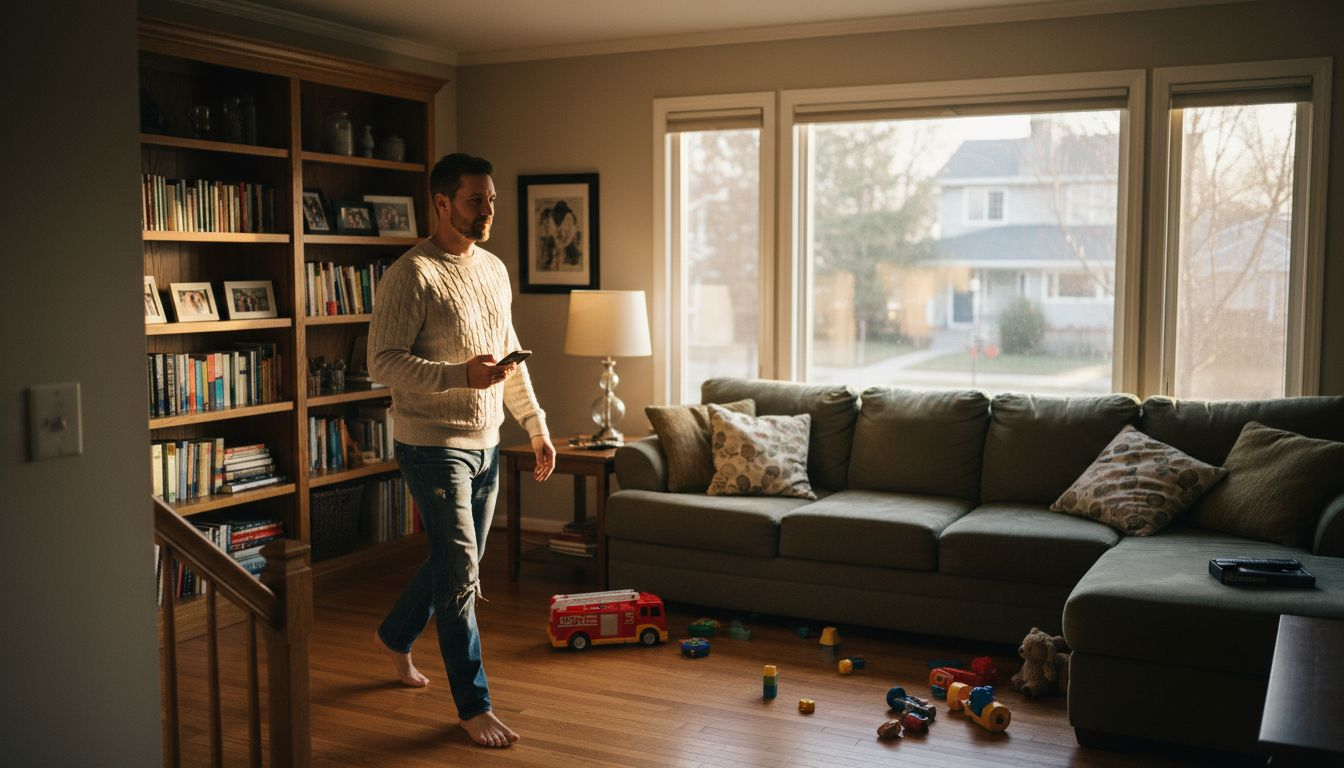
Finding the right smart lighting installation guide setup can feel confusing when every room in your home serves a different purpose. For homeowners who want comfort, style, and efficiency, thoughtful choices around lighting make a big impact on daily routines. This guide explains how to assess what you actually need, compare device options, and create a connected home environment with smart lighting systems tailored to your goals and spaces.
Table of Contents
- Step 1: Assess Lighting Needs And Choose Devices
- Step 2: Prepare Wi-Fi Network And Install Hardware
- Step 3: Configure Smart Lighting In The App
- Step 4: Test Controls And Automations
Quick Summary – Smart Lighting Installation Guide
| Key Takeaway | Explanation |
|---|---|
| 1. Assess Your Lighting Needs | Analyze each room’s purpose and determine if you need ambient, task, or security lighting. Choose devices that fit your specific goals. |
| 2. Ensure Strong Wi-Fi Connection | Check Wi-Fi signal strength in areas where you will install smart lights. A reliable connection is essential for seamless operation. |
| 3. Configure Settings in the App | Use the companion app to name devices clearly, organize them by rooms, and set customizable scenes for various activities. |
| 4. Test Each Component Thoroughly | Verify that each light responds to the app and voice commands. Test automation features to ensure everything functions as intended. |
| 5. Start Small and Expand Later | Begin with one room and one type of device to evaluate compatibility before adding more devices into your smart lighting setup. |
Step 1: Assess Lighting Needs and Choose Devices
Before buying anything, take time to understand what your home actually needs. Smart lighting isn’t one-size-fits-all, and the devices you choose should match your specific goals and spaces.
Start by walking through each room and asking yourself what lighting does there. Are you looking for ambient light that sets the mood in your living room? Do you need task lighting for your kitchen counters or home office desk? Maybe you want to brighten a dark entryway or create security lighting outside.
Write down which rooms matter most to you. Not every space needs smart lighting right away. Many homeowners start with high-traffic areas like bedrooms, living rooms, and kitchens, then expand from there.
Next, consider your primary goals:
- Energy savings through automated scheduling and dimming
- Convenience with voice control or app-based adjustments
- Ambiance with color-changing bulbs for different moods
- Security with motion sensors and automated scheduling
- Integration with other smart home devices you already own
Smart lighting systems come in different types, and your goals will guide which works best. Smart bulbs replace your existing bulbs and work with your current fixtures. On the other hand, smart switches control standard bulbs without replacement. Light strips add accent lighting to shelves or under cabinets. Hubs or controllers act as the brain, connecting everything together.
Here’s a quick comparison of smart lighting device types and their ideal use cases: – Smart Lighting Installation Guide
| Device Type | Best For | Installation Complexity | Notable Benefit |
|---|---|---|---|
| Smart Bulbs | Individual fixtures, mood | Easy, just swap bulbs | Color/brightness control |
| Smart Switches | Whole room, standard bulbs | Moderate, rewiring needed | Central room control |
| Light Strips | Accent areas, décor | Easy, adhesive or mounting | Flexible placement |
| Hubs/Controllers | Larger setups, integration | Plug and app setup | Unified control system |
Check what smart home platform you’re already using
Do you have Amazon Alexa, Google Home, or Apple HomeKit? Many smart lights work best when they match your existing ecosystem. Some devices use intelligent control systems that adapt to your behavior and environmental conditions, learning your preferences over time.
Budget matters too. Smart bulbs start around fifteen dollars each, while full smart switch systems cost more upfront but can control multiple fixtures. Decide whether you’ll go all-in on one brand or mix compatible devices.
The right devices match your actual needs, not what sounds coolest online.
Pro tip
Start with one room and one type of device to test compatibility and ease of use before expanding your whole home setup.
Step 2: Prepare Wi-Fi Network and Install Hardware
Now that you’ve chosen your devices, it’s time to set up the infrastructure that makes them work. A strong Wi-Fi connection is the backbone of any smart lighting system, so preparation matters before you install anything.

– Smart Lighting Installation Guide
Start by checking your Wi-Fi signal strength in the rooms where you’ll install lights. Move around with your phone or tablet and note areas with strong connectivity. Avoid installing smart lights in dead zones or far corners of your home where the signal drops. If you find weak spots, consider repositioning your router or adding a mesh Wi-Fi system before proceeding.
For systems that require one, plug in your hub or controller to your router first. This device acts as the command center, connecting all your smart lights together. Position it centrally in your home for better coverage. Don’t forget to power it on and let it fully boot up before moving to the next step.
When you’re ready to install the actual lights, follow this sequence:
- Turn off power at the light fixture or switch for safety
- Remove the old bulb or uninstall the existing switch if replacing hardware
- Install the smart bulb or switch according to your device’s instructions
- Restore power to the fixture
- Download the companion app on your smartphone or tablet
- Put the device in pairing mode as directed by the app
- Connect to Wi-Fi or Bluetooth following the app prompts
One critical detail:
Keep the fixture or switch powered on at all times once installation is complete. Your smart lights need constant power to receive commands from the app or voice assistant, even when they’re off.
With proper Wi-Fi setup and network basics, your devices will connect reliably and respond quickly to commands. Weak Wi-Fi is the number one reason smart lighting feels frustrating.
Screw smart bulbs into fixtures with strong signal coverage to avoid connectivity issues down the road.
The table below summarizes essential steps to ensure reliable smart lighting performance:
| Step | Why It Matters | Recommended Action |
|---|---|---|
| Wi-Fi Signal Check | Prevents connection issues | Test with phone/tablet |
| Hub Placement | Maximizes coverage | Center of home |
| Power Setup | Ensures constant control | Keep fixture powered on |
| App Pairing | Enables remote access | Follow device instructions |
Strong Wi-Fi coverage determines whether your smart lighting feels seamless or sluggish.
Pro tip: Test each light individually before grouping them into scenes or automation routines, so you can troubleshoot connection issues one device at a time.
Step 3: Configure Smart Lighting in the App
Your lights are installed and connected. Now comes the fun part: setting them up in the app so they actually do what you want. This is where smart lighting transforms from convenient to genuinely transformative.

– Smart Lighting Installation Guide
Open the companion app for your lighting system and sign in or create an account. Most apps will automatically detect your newly connected lights. If they don’t show up, try refreshing or restarting the app. Once you see your devices listed, give each one a descriptive name like “Living Room Main Light” or “Kitchen Counter Strips” rather than generic names. You’ll appreciate clear naming when you’re asking your voice assistant for specific lights.
Start by organizing your lights into rooms or zones. This makes controlling multiple lights at once much easier. You can then customize individual settings for each light:
- Brightness levels for different times of day or activities
- Color temperature shifts from warm white to cool white
- Dimming schedules that fade lights automatically at bedtime
- Color options if your bulbs support RGB lighting
One of the most powerful features is creating scenes or moods. These are preset combinations of brightness, color, and temperature that you can activate with one tap. For example, set up a “Movie Night” scene with dimmed warm lighting, a “Morning Boost” scene with bright cool white light, or a “Dinner” scene with softer amber tones. You can customize settings such as dimming, color temperature shifts, and scheduled timers to match your daily routines perfectly.
Connect your app to voice assistants like Alexa or Google Home if you want hands-free control. Link any motion sensors you’ve installed so lights turn on automatically when someone enters a room. Test all connections thoroughly before moving to automation.
Scenes save you time by grouping settings you’ll use repeatedly.
Pro tip: Create 3-5 core scenes that match your daily life (morning, work focus, evening, bedtime, entertaining) rather than dozens of variations you’ll rarely use.
Step 4: Test Controls and Automations
Before celebrating your new smart lighting system, take time to test everything thoroughly. This step prevents frustrations later and ensures your setup works reliably when you actually need it.
Start by testing app control on each light individually. Open your app, tap each light on and off, and confirm it responds within a few seconds. Adjust brightness and color if applicable. Any light that lags or doesn’t respond needs troubleshooting before moving forward. Check if the issue is weak Wi-Fi or a connection problem with that specific device.
Next, test your voice assistant integration. Say commands like “Turn on the living room light” or “Dim the bedroom to 50 percent.” Speak naturally and give the system a moment to respond. Voice control should feel smooth and reliable, not sluggish or unpredictable.
Now test your automation triggers one by one:
- Motion sensors – Walk past them and confirm lights activate
- Time-based schedules – Set a test automation for a few minutes from now and watch it trigger
- Scene activation – Tap each scene in your app and verify all included lights adjust as designed
- Integration with other devices – If your lights connect to smart thermostats or security systems, test those interactions
Comprehensively test smart lighting systems for functionality and reliability, including remote control via apps, voice control integration, and automation triggers such as motion sensors or time schedules. Check that energy-saving automations actually reduce power consumption by monitoring your energy usage before and after setup.
Document any issues you find. If a light doesn’t connect reliably, move it closer to your hub or router. If voice control feels slow, check your internet speed and Wi-Fi signal strength.
A few hours of testing now saves weeks of frustration later.
Pro tip: Test automations during daytime first, so you can see exactly what’s happening with the lights and troubleshoot problems in natural light.
Unlock the Full Potential of Your Smart Lighting System Today
Installing smart lighting can seem overwhelming as you balance choosing the right devices, optimizing your Wi-Fi setup, and mastering app configuration. This guide highlights common pain points such as ensuring reliable connectivity, matching lighting goals like energy savings or ambiance, and creating seamless automations that save you time and enhance your daily life. If you want to avoid frustration and make confident choices, expert guidance makes all the difference.

Discover step-by-step, unbiased advice and tested product recommendations at Smart Home HQ. Whether you are just starting with smart bulbs or building a whole-home automation system, our The Complete Smart Home Automation Master Guide Archives – Smart Home HQ equips you with proven strategies. Don’t miss our insights on maintaining a secure smart home environment in Smart Home Safety Archives – Smart Home HQ. Take control of your home lighting setup now and transform your living spaces with confidence. Visit us at Smart Home HQ and start your smart lighting journey the right way.
Frequently Asked Questions – Smart Lighting Installation Guide
How do I assess my home lighting needs before installation?
Before installation, walk through each room and identify your lighting goals, like mood setting or task lighting. Make a list of the important areas where you want smart lighting, focusing first on high-traffic spaces like the living room and kitchen.
What types of smart lighting devices should I consider for my home?
You can choose from smart bulbs, smart switches, light strips, and hubs or controllers. Assess whether you need individual fixture control, whole room management, accent lighting, or a unified control system to suit your specific needs.
How can I prepare my Wi-Fi network for smart lighting?
Ensure you have a strong Wi-Fi signal where you’ll install the lights. Test the connectivity in those areas with a phone or tablet and consider repositioning your router or adding a mesh system if needed to prevent connectivity issues.
What steps should I follow to install smart lighting devices?
Begin by turning off power at the fixture, then install the smart bulb or switch according to the device’s instructions. Restore power, then download the companion app to connect and configure your devices for smooth operation.
How can I create and test lighting scenes in the app?
After installation, use the app to name each light descriptively, then organize them into rooms or zones. Create scenes by combining brightness, color, and temperature settings tailored to your activities, and test them to confirm they activate as intended.
What should I do if my smart lights don’t respond during testing?
If a light lags or doesn’t respond, first check your Wi-Fi connection and try moving the device closer to the hub. Make sure the fixture remains powered on, and troubleshoot by reviewing each setup step until the issue is resolved.
Recommended
- Smart Lighting System: Complete Buyers Guide
- How to Automate Home Lighting for Effortless Control
- Smart Home Lighting | Smart Home HQ
- Smart Home HQ Best Smart Lighting Archives – Smart Home HQ