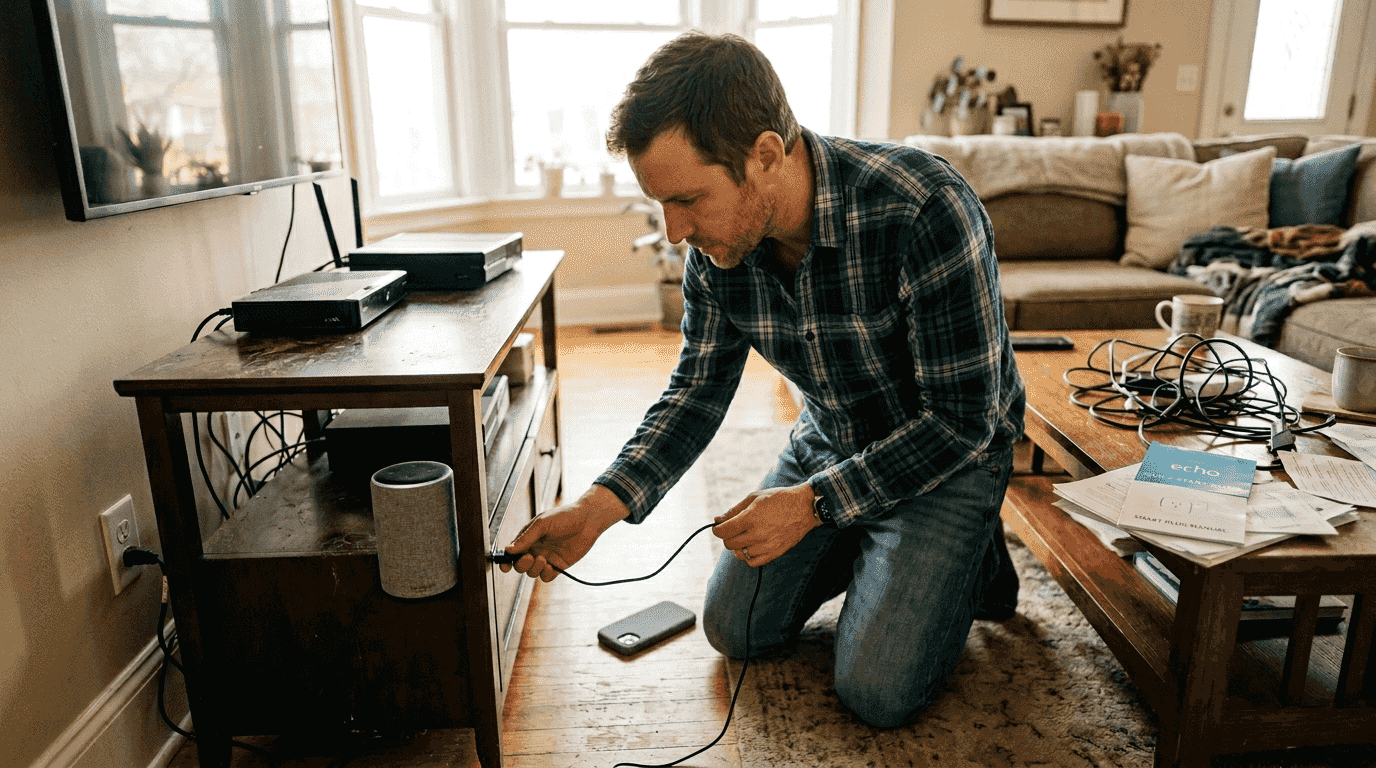
Smart home devices promise convenience, but when they fail, frustration sets in fast. Whether it’s a smart bulb that won’t respond, a thermostat stuck offline, or a security camera dropping its connection, these issues disrupt your daily routine. The good news? Most problems stem from power, Wi-Fi, and app sync issues, and you can fix them with a clear, systematic approach. This guide walks you through identifying common causes, executing step-by-step diagnostics, and maintaining your system to prevent future headaches in 2026.
Table of Contents
- Identify Common Causes Before Deeper Diagnostics
- Step-By-Step Smart Home Troubleshooting Process
- Understanding Smart Home Networking Protocols And Interference
- Maintenance Tips To Prevent Future Smart Home Issues
- Explore Smart Home Solutions At Smart Home HQ
Key takeaways
| Point | Details |
|---|---|
| Most failures are simple | Power interruptions, Wi-Fi drops, and app sync account for 70% of smart device issues |
| Rebooting resolves glitches | A quick restart clears temporary bugs and firmware hiccups in most cases |
| Protocol choice matters | Zigbee, Z-Wave, and Thread reduce Wi-Fi congestion and improve reliability |
| Physical switches cause problems | Accidentally turned-off wall switches cut power to smart bulbs and plugs |
| Updates prevent issues | Regular firmware and app updates fix bugs and strengthen security |
Identify common causes before deeper diagnostics
Before you dive into complex troubleshooting, rule out the most frequent culprits behind smart device failures. Power interruptions top the list. A family member flipping a wall switch, a tripped circuit breaker, or a loose plug can instantly take your smart bulb or plug offline. Check the physical power source first. Confirm the switch is on and the outlet delivers power by testing it with another device.
Wi-Fi disruptions rank second. Your router might be overloaded, positioned too far from devices, or experiencing interference from neighboring networks. Smart devices need stable connectivity to receive commands and report status. If your Wi-Fi network struggles under heavy load or dead zones exist in your home, devices will drop offline repeatedly.
App synchronization issues create phantom failures. Your device might be working perfectly, but the app shows it as offline or unresponsive. This happens when the app loses its connection to the cloud service or the device itself. Force-closing and reopening the app often resolves these glitches. Keep your apps updated to avoid compatibility problems with newer device firmware.
Preparing basic tools saves time. Have your router login credentials ready, ensure your smartphone has the latest app versions, and verify your devices run current firmware. Check your smart home security settings to confirm network changes haven’t locked devices out. A quick review of your setup checklist helps identify overlooked configuration steps.
Pro Tip: Create a simple spreadsheet listing each device, its protocol (Wi-Fi, Zigbee, Z-Wave), firmware version, and last update date. This reference speeds up troubleshooting when multiple devices act up simultaneously.

Step-by-step smart home troubleshooting process
When a device fails, follow this systematic approach to diagnose and fix the problem efficiently. Each step builds on the previous one, moving from simple fixes to more complex solutions.
-
Reboot the device first. Power cycling clears temporary bugs, firmware hiccups, and dropped network connections. Unplug the device, wait 30 seconds, then plug it back in. For battery-powered devices, remove and reinsert the batteries. This simple step resolves issues 40% of the time.
-
Verify stable power delivery. Check that wall switches remain in the on position. Test the outlet with a lamp or phone charger to confirm it works. Inspect power cables for damage and ensure they’re fully seated in both the device and outlet.
-
Assess Wi-Fi connectivity. Open your router’s admin panel and confirm the device appears in the connected devices list. If it’s missing, the device lost its network connection. Move closer to the router or add a mesh node to extend coverage. Restart your router if multiple devices show offline.
-
Resync the device app. Force-close the app completely, then reopen it. If the device still shows offline, remove it from the app and re-add it following the manufacturer’s pairing instructions. This refreshes the connection between app, cloud service, and device.
-
Check for firmware updates. Outdated firmware causes compatibility issues with updated apps and cloud services. Navigate to the device settings in your app and install any available updates. Some devices update automatically, but manual checks catch stragglers.
-
Consult device-specific guides. If standard steps fail, visit the manufacturer’s support site for model-specific troubleshooting. Some devices have unique reset procedures or known issues with particular router models. Your device connection guide offers brand-specific tips.
Pro Tip: Document which step resolved your issue. Patterns emerge over time. If rebooting fixes the same device weekly, you’ve identified a deeper problem requiring replacement or network optimization.
Many homeowners skip straight to factory resets, losing all custom settings unnecessarily. Work through these steps methodically. You’ll fix common annoyances faster and preserve your configurations.
Understanding smart home networking protocols and interference
The protocol your devices use dramatically affects reliability and performance. Wi-Fi, Zigbee, Z-Wave, and Thread each have strengths and weaknesses that impact your troubleshooting success.

Zigbee operates in the 2.4 GHz band alongside Wi-Fi and Bluetooth, communicating over 16 channels. This creates congestion problems in dense neighborhoods where dozens of networks compete for bandwidth. Wi-Fi signals overpower Zigbee due to higher transmission power, causing Zigbee devices to drop connections or respond slowly. If you run Zigbee devices, select channels 25 or 26 when your hub supports them. These channels experience less Wi-Fi overlap.
Z-Wave uses sub-GHz frequencies (908 MHz in North America), avoiding Wi-Fi interference entirely. Walls and floors attenuate these lower frequencies less than 2.4 GHz signals, providing better whole-home coverage. Z-Wave supports fewer devices per network (232 maximum) compared to Zigbee’s theoretical 65,000, but most homes never approach these limits. The lack of interference makes Z-Wave more reliable in challenging RF environments.
Thread creates self-healing mesh networks using the 2.4 GHz band but with smarter channel management than traditional Zigbee. Thread devices automatically find the best path to the border router, routing around failed nodes. This makes Thread ideal for battery-powered sensors that need reliable communication without constant power. Thread’s integration with Matter ensures future compatibility across brands.
Hub-based protocols like Zigbee and Z-Wave reduce Wi-Fi congestion and improve reliability compared to pure Wi-Fi devices. Your router handles fewer simultaneous connections, and mesh protocols extend range through device-to-device communication. This architecture prevents the single point of failure that occurs when your router becomes overwhelmed.
| Protocol | Frequency | Range | Interference | Best Use Case |
|---|---|---|---|---|
| Wi-Fi | 2.4/5 GHz | Medium | High | High-bandwidth devices like cameras |
| Zigbee | 2.4 GHz | Medium | Medium-High | Lights, sensors, low-power devices |
| Z-Wave | 908 MHz | Long | Very Low | Whole-home coverage, reliable control |
| Thread | 2.4 GHz | Medium | Low-Medium | Battery sensors, Matter devices |
Choosing the right protocol for each device type optimizes your network. Cameras and video doorbells need Wi-Fi’s bandwidth. Lights and sensors work better on Zigbee or Z-Wave to avoid router overload. Understanding these IoT networking protocols helps you diagnose why specific devices fail while others work perfectly.
Consider upgrading to Matter-compatible devices as you replace failed units. Matter provides a unified standard across protocols, simplifying troubleshooting and ensuring devices work together regardless of manufacturer.
Maintenance tips to prevent future smart home issues
Proactive maintenance prevents most smart home problems before they disrupt your routine. These practical strategies keep your system running smoothly year-round.
Protect physical switches from accidental shutoffs. Covering wall switches prevents family members and guests from cutting power to smart bulbs and plugs. Install switch guards, decorative covers, or simply place a small label reminding people to leave switches on. This single step eliminates the most common cause of “device offline” complaints.
Schedule monthly firmware and app updates. Set a recurring calendar reminder to check for updates across all your smart home apps and hubs. Regular updates fix bugs, patch security vulnerabilities, and add new features. Manufacturers often release updates that improve device stability and compatibility with other products. Enable automatic updates where available, but verify they completed successfully.
Expand coverage with mesh network devices. If devices in certain rooms frequently drop offline, your network lacks adequate coverage. Add Zigbee or Z-Wave devices that act as repeaters, extending the mesh network naturally. Powered devices like smart plugs and light switches strengthen the mesh more effectively than battery-powered sensors.
Plan for internet outages. Configure local control where possible so devices continue working when your internet connection fails. Hub-based systems often support local automation rules that run without cloud access. Test your setup by disconnecting your router temporarily. Identify critical devices that need local operation and adjust their configuration. Your internet outage guide details specific steps for maintaining functionality offline.
Conduct quarterly system reviews. Every three months, audit your smart home setup. Remove unused devices from apps to reduce clutter. Check battery levels in sensors and replace weak batteries before they die. Review automation rules and delete obsolete ones. Update your device inventory spreadsheet with any changes.
Pro Tip: Group devices by protocol in your documentation. When troubleshooting, you’ll quickly identify whether the issue affects all Zigbee devices (suggesting hub problems) or just Wi-Fi devices (pointing to router issues). This pattern recognition accelerates diagnosis.
Follow these best practices for smart home setup to build a resilient system from the start. Prevention beats troubleshooting every time. A well-maintained smart home delivers the convenience you expect without constant technical headaches.
Explore smart home solutions at Smart Home HQ
Now that you understand how to troubleshoot and maintain your smart home system, take the next step toward optimization. Smart Home HQ offers expert reviews and guides to help you select reliable devices that minimize future problems. Our team tests products extensively in real-world conditions, identifying which devices deliver consistent performance and which ones require constant troubleshooting.

Discover best practices for your 2026 setup that prevent common issues before they start. Explore our curated selection of the latest smart home devices that combine cutting-edge features with proven reliability. Whether you’re building a new system or upgrading existing devices, our comprehensive guides on types of smart home devices help you make informed decisions that reduce troubleshooting time and maximize your smart home investment.
FAQ
How do I know if a power issue is causing my smart device to fail?
Power problems typically cause devices to go completely offline rather than responding intermittently. Check the physical wall switch first, as someone may have turned it off accidentally. Test the outlet with another device like a lamp to verify it delivers power. If the outlet works but your smart device doesn’t, the device itself likely failed and needs replacement.
What’s the best way to reduce Wi-Fi interference with my smart home devices?
Switch to hub-based protocols like Zigbee or Z-Wave for lights, sensors, and switches to keep them off your congested Wi-Fi network. If you must use Wi-Fi devices, enable the 5 GHz band on dual-band devices when possible, as it experiences less interference than 2.4 GHz. For Zigbee devices, select channels 25 or 26 if your hub supports them to minimize overlap with Wi-Fi channels.
How often should I update smart home device firmware and apps?
Check for updates monthly or whenever you notice devices behaving erratically. Set a calendar reminder on the first day of each month to review all your smart home apps and hubs for available updates. Many manufacturers release updates quarterly, but critical security patches may arrive more frequently. Enable automatic updates where available, but verify they installed correctly by checking version numbers in device settings.
Recommended
- Fix Common Smart Home Annoyances
- DIY Smart Home Integration Guide: Connect All Your Devices
- How to Set Up Smart Home for Beginners: Easy Steps
- Smart Home Technology for a Connected Lifestyle