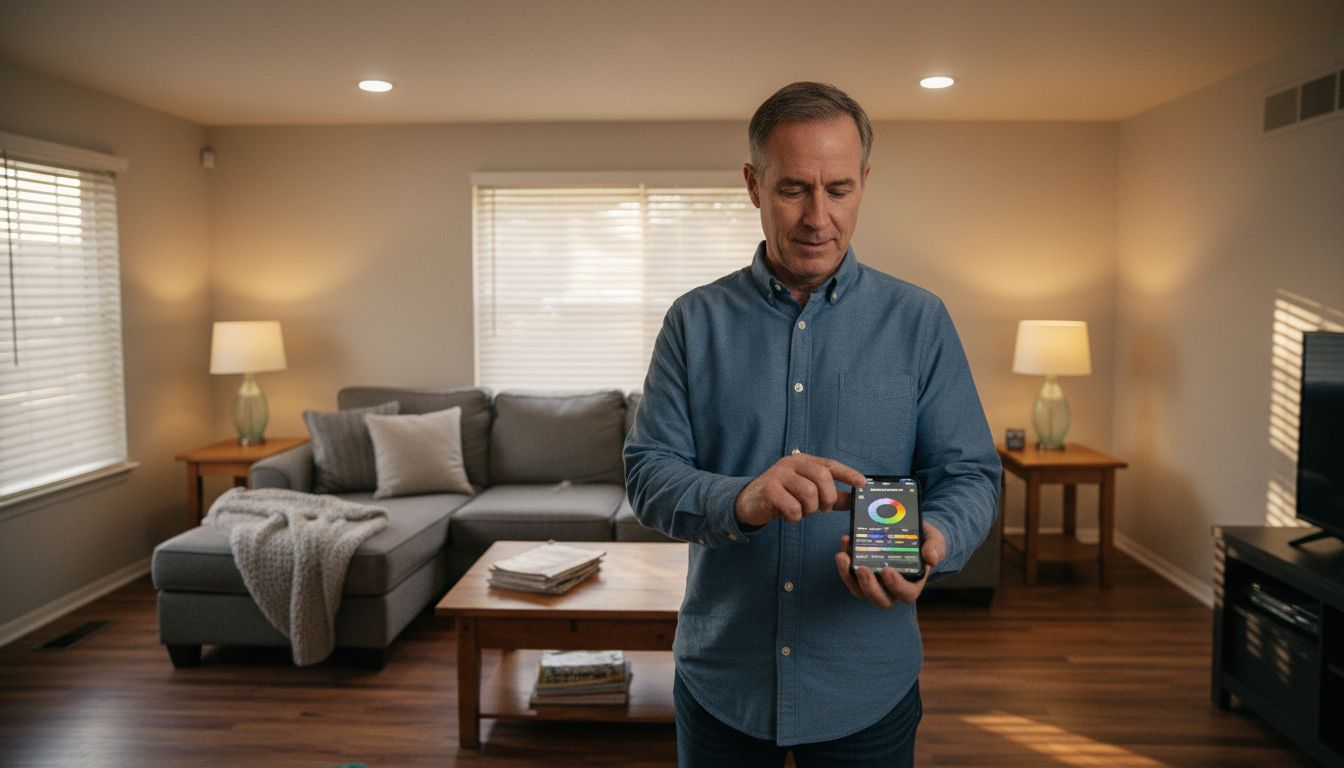
How to Automate Home Lighting
Smart lighting can turn everyday routines into seamless moments of comfort and control, but knowing how to automate home lighting and where to begin is often the toughest part. For tech-minded homeowners living in cities from Tokyo to Toronto, the right home automation setup delivers not only convenience but also real savings on energy bills. By focusing on a strategic approach and choosing energy-efficient lighting controls and systems, you unlock both personalized comfort and smarter resource use throughout your urban home.
Table of Contents
- Step 1: Assess Lighting Needs And Layout
- Step 2: Select Compatible Smart Lighting Devices
- Step 3: Install And Set Up Smart Bulbs Or Switches
- Step 4: Connect Devices To Your Home Automation Hub
- Step 5: Configure Lighting Schedules And Automation Rules
- Step 6: Test And Verify Automated Lighting Actions
Quick Summary
| Key Point | Explanation |
|---|---|
| 1. Assess Your Lighting Needs | Walk through your home to document existing fixtures and how you use each light, identifying where automation can improve daily life. |
| 2. Choose Compatible Devices | Select smart bulbs and switches based on wireless protocols like Zigbee or Wi-Fi to ensure system compatibility and seamless integration. |
| 3. Install Smart Lighting Properly | For smart bulbs, simply replace existing bulbs. For switches, turn off power and connect wires carefully, following manufacturer instructions. |
| 4. Connect to a Hub for Automation | Set up your devices with a central hub to enable automation, scheduling, and voice control, improving convenience and efficiency. |
| 5. Test Automations Thoroughly | Verify each automation rule to ensure proper function, making adjustments based on observed performance to enhance reliability. |
How To Automate Home Lighting – Step 1: Assess lighting needs and layout
Before you start buying smart bulbs and controllers, you need to understand what you’re actually working with. This step is about taking inventory of your current lighting situation and figuring out what each space really needs. You’ll walk through your home, document existing fixtures, and identify where automation makes the most sense. Think of it as creating a blueprint for your smart lighting system.
Start by going room by room and noting every light source.
Pull out your phone or grab a notebook and list the types of fixtures you have, whether they’re ceiling lights, wall sconces, lamps, or outdoor fixtures. Don’t skip the obvious stuff like table lamps or reading lights, as these can be upgraded to smart bulbs. Take a moment to observe how you actually use each light. Do you flip that living room switch dozens of times a day, or does it stay on for hours? Is your bedroom light something you control from bed, or is it a quick on and off as you enter? These usage patterns tell you where automation will genuinely improve your daily routine.
Next, assess the function of each space
Indoor lighting design principles emphasize matching light quality and quantity to the activities performed in each room. A kitchen needs bright, focused task lighting for food preparation, while a bedroom benefits from adjustable, warm light that you can dim for relaxation. A hallway might only need motion activated lighting for convenience and energy savings. Consider how much natural daylight each room gets throughout the day. Spaces with abundant windows may need less automation during daytime hours, while interior hallways or basement areas benefit from consistent, sensor driven lighting. Document the current brightness levels if you want to be thorough, though a visual assessment often works fine for beginners.
Take note of your existing light switches and their locations. Are they in convenient spots, or do you walk across the room to turn off a light? Are there areas where multiple switches control the same light, like a staircase with switches at both ends? These are perfect candidates for smart lighting, since you can control them all from one app or voice command. Look at your electrical setup too. Understanding fixture counts and control systems helps you plan how to integrate smart components without major rewiring. Most smart bulbs work in existing fixtures, but some situations like recessed lights might require different solutions.
Consider your lifestyle and daily routines.
Do you travel frequently and want lights to simulate occupancy? Are you concerned about energy costs and want automated scheduling? Do you have mobility challenges that make traditional switches inconvenient? Your answers shape which automation features matter most. Create a simple priority list of rooms or areas where smart lighting would add the most value, whether that’s convenience, energy savings, security, or ambiance. This keeps you focused on how to automate home lighting when you move to the next steps.

Pro tip: Take photos or videos of each room showing the current lighting fixtures and switch locations from multiple angles, then review them later when you are planning your automation setup to ensure you have not overlooked any details.
How To Automate Home Lighting – Step 2: Select compatible smart lighting devices
Now that you know what you’re working with, it’s time to choose devices that will actually work together. Compatibility is the foundation of a smooth smart lighting system. You’ll be looking at bulbs, switches, hubs, and controllers that speak the same language and integrate seamlessly with your home setup.
Start by identifying which wireless protocol makes sense for your situation. The most common options for residential smart lighting are Zigbee, Bluetooth, Wi-Fi, and Z-Wave. Zigbee and Z-Wave create mesh networks where devices relay signals through each other, which means better range and reliability throughout your home. Bluetooth works well for smaller spaces and requires less infrastructure. Wi-Fi offers direct connectivity but can strain your router if you have many devices. LED and OLED lighting technologies integrated with wireless communication protocols form the backbone of modern smart lighting systems, so selecting devices that support one of these established standards ensures you are not investing in proprietary technology that may become obsolete.
Here is a comparison of common smart lighting wireless protocols to help you choose the best fit for your home:
| Protocol | Range | Reliability | Best Use Case |
|---|---|---|---|
| Zigbee | Up to 100 feet | Very stable, mesh | Whole home coverage |
| Z-Wave | Up to 100 feet | Reliable, mesh | Large homes, expand |
| Wi-Fi | Depends on router | Can jam on busy net | Small setups, direct |
| Bluetooth | Short (20-30 ft) | Reliable, point-to-point | Single rooms, apartments |
Next, think about whether you need a hub. Some systems like Philips Hue or LIFX operate without one, communicating directly with your phone over your home network. Others like Zigbee devices require a central hub to coordinate everything. If you already have a smart speaker like an Amazon Echo or Google Home, check whether it can function as a hub for your chosen lighting protocol. This can save you money and simplify your setup. When comparing specific devices, look for standardized protocols that ensure interoperability. The Digital Addressable Lighting Interface (DALI) is a standardized protocol designed for digital control of lighting devices, enabling flexible system reconfiguration and two-way communication for status feedback. Devices supporting open protocols like DALI or similar standards give you confidence that you can mix and match brands without conflicts.
Consider your budget and how much control you actually want.
Read the specifications carefully before purchasing.
Check whether each device supports dimming, color changing, scheduling, and any other features you identified as priorities in step one. Look at compatibility lists to ensure the bulbs or switches work with your chosen hub or platform. Make sure you understand the warranty and return policy, since compatibility issues sometimes only become apparent after installation. Start with one room or a small area to test your setup before committing to automating your entire home. This lets you work out any issues and verify that your chosen devices play nicely together.
Pro tip:
Buy all your initial smart lighting devices from the same ecosystem or one that explicitly guarantees interoperability, then gradually expand to other brands once you are confident in how the system behaves and performs in your specific home environment.
How To Automate Home Lighting – Step 3: Install and set up smart bulbs or switches
Installation is where your planning becomes reality. This step takes you from unboxing devices to having them communicating with your phone and voice assistants. Whether you’re swapping out bulbs or replacing switches, the process is straightforward if you follow a few key principles.
Start with smart bulbs if you’re new to this, since they require zero wiring knowledge.
Turn off the light switch at the wall, then simply unscrew your old bulb and screw in the smart bulb. Turn the switch back on and the bulb should power up. Most smart bulbs pulse or flash when they first receive power, signaling they’re ready to connect. Open the manufacturer’s app on your phone, scan the code on the bulb or packaging, and follow the pairing prompts. The app will ask you to select your Wi-Fi network and create a name for the bulb like “Living Room Lamp” or “Bedroom Ceiling.” That’s it. You now have a connected light you can control from anywhere.

Installing smart switches
If you’re installing smart switches, you’ll need to turn off power at your circuit breaker before starting. This is the important safety step that people sometimes skip. Open the existing switch plate and remove the old switch by unscrewing the wire connections. Match the wires on your new smart switch to the corresponding terminals, turning the tiny screws to secure them. Some switches have a neutral wire requirement, which is a white wire that must be present in your electrical box.
If your switch doesn’t have access to a neutral wire, look for switches specifically designed to work without one. Once wired, screw the switch into the box, attach the plate, and restore power. The switch should light up or show a status indicator when properly installed. Smart lighting setup generally involves connecting devices to hubs or microcontrollers and configuring network settings through smartphone applications, so follow your switch’s app instructions to complete the network configuration.
Now add all your devices to a hub or central platform if your system requires one.
If you’re using Zigbee or Z-Wave devices, put your hub into pairing mode, then put each device into pairing mode as well. The hub will search for new devices and add them to your network automatically. For Wi-Fi devices, you may not need a hub at all, though some people create one using their smart speaker for better organization and reliability. Name each device thoughtfully as you add it, using descriptions that make sense in context. Instead of “Light 1” and “Light 2,” use “Kitchen Overhead” and “Kitchen Sink” so you know exactly which light you’re controlling when you give voice commands.
Test each device before moving on to the next one. Turn lights on and off from the app, test dimming if available, and verify that voice commands work if you’ve connected a smart speaker. Walk through your home testing range to make sure devices respond quickly from different rooms. If a device responds slowly or drops connection, move your hub closer or add a mesh extender to strengthen the network. Start small with a single room before automating your entire home. This approach lets you troubleshoot any issues in a contained space rather than discovering problems spread across multiple rooms.
Pro tip:
Take photos of your wire connections before removing the old switch and label them with tape, then keep these photos on your phone in case you need to troubleshoot connectivity issues or reinstall the switch later.
How To Automate Home Lighting – Step 4: Connect devices to your home automation hub
Your hub is the command center that brings all your smart lights together. This step connects your individual devices to that central hub, transforming them from standalone gadgets into a coordinated system. Once everything talks to your hub, you unlock automation, scheduling, and voice control across your entire setup.
Before you start connecting devices
Make sure your hub is powered on and connected to your home Wi-Fi network. Access your hub’s settings through its dedicated app and look for the option to add new devices or enter pairing mode. Different hubs have different names for this feature, so check your manual if you cannot find it immediately. Some hubs will show a blinking light or display a countdown timer while in pairing mode, indicating they are actively searching for new devices.
This is your window to introduce each device to the hub. Put your first smart bulb or switch into pairing mode as well, which usually means holding a button for several seconds or rapidly flipping a switch on and off. The hub will detect the device and prompt you to name it and assign it to a room or zone. Be specific with naming. Instead of calling everything “Light,” use “Kitchen Island,” “Master Bedroom,” or “Front Porch” so your automation routines and voice commands work intuitively.
How to automate home lighting- Continue adding devices one at a time rather than all at once
This approach helps you troubleshoot if something goes wrong, since you’ll know exactly which device caused the issue. After adding each device, test it from the app to confirm it responds properly. Check that dimming works if the device supports it, and verify that the brightness level updates in real time when you adjust it. A smart home hub acts as a central point that enables communication between various smart devices, supporting multiple wireless protocols like Zigbee, Z-Wave, and Bluetooth to enhance convenience and interoperability across your lighting system. Understanding which protocol your hub supports and which devices use that same protocol ensures smooth communication without conflicts.
Once you have added your initial set of devices
Explore the grouping or room features in your hub’s app. Most hubs let you create logical groupings like “Living Room” or “Bedroom” and then control all lights in that group with a single command. This is incredibly useful when you want to say “Alexa, turn off the bedroom” and have all bedroom lights respond together. Test your groupings to make sure they work as expected. If you have a smart speaker or display connected to the same hub, verify that voice commands work correctly. Try commands like “Turn on the kitchen light” or “Dim the bedroom to 50 percent” to ensure everything responds smoothly.
If you notice that some devices respond slowly or disconnect frequently, you may have a range issue. Most hubs broadcast a signal that reaches about 100 feet in open space, but walls and obstacles reduce this range significantly. If a device is far from your hub, consider moving the hub to a more central location or adding a Wi-Fi extender or mesh repeater to strengthen the signal. Some devices can also act as repeaters themselves, strengthening the network by relaying signals from the hub to distant devices. Test your setup after making changes to confirm improvements in responsiveness.
Pro tip:
Add devices to your hub in the order you plan to use them, starting with the rooms you spend the most time in, so you can test and refine automation routines in frequently used spaces before expanding to less critical areas.
How To Automate Home Lighting – Step 5: Configure lighting schedules and automation rules
Schedules and automation rules transform your smart lighting from manual controls into an intelligent system that works for you automatically. This step is where you teach your lights to adapt to your lifestyle, creating routines that save energy while keeping your home comfortable and secure. You’ll set up time-based schedules, occupancy-triggered lighting, and custom rules that respond to different scenarios throughout your day.
Start by identifying your daily lighting patterns. When do you typically wake up and want lights to gradually brighten? What time does the sun usually set in your area? When do you leave for work or return home? These timing details become the foundation of your schedules. Open your hub’s app and look for the automation, routines, or scenes section. Most platforms let you create scenes, which are predefined lighting configurations like “Good Morning” with warm lights at 50 percent brightness or “Movie Time” with dimmed warm lighting.
Create scenes for your most frequently used settings
Then set them to activate at specific times. You might schedule your bedroom lights to turn on at 6 AM at 20 percent brightness to ease you into waking, gradually ramping up to full brightness over 10 minutes. In the evening, schedule a “Sunset” scene at 7 PM that transitions your living room to warm amber tones at 30 percent brightness.
Lighting controls such as timers and programmable systems allow users to create schedules that reduce energy use while maintaining comfort. Beyond simple on-off schedules, configure occupancy-based automation so lights respond to whether rooms are actually in use. If your smart bulbs or switches have motion sensors or integrate with motion detector devices, set them to turn on when movement is detected and turn off after a preset number of minutes of inactivity. This works wonderfully for hallways, bathrooms, and laundry rooms where you want hands-free convenience. For example, configure your hallway lights to activate at 10 percent brightness when motion is detected after sunset, then turn off after five minutes of no activity. This is how to automate home lighting and prevent unnecessary lighting when nobody is home and saves considerable energy compared to leaving lights running constantly.
Explore daylight-aware automation if your system supports it.
Some smart hubs can access sunset and sunrise times for your geographic location, allowing you to create conditional rules like “After sunset, if motion is detected in the hallway, turn on lights to 50 percent brightness.” This means your automation adjusts naturally as seasons change. Create rules for security as well. Many people set exterior lights or entryway lights to turn on at dusk and off at dawn, or set them to trigger when the door is unlocked. You might also create a “Leaving Home” scene that gradually turns off all lights, and an “Arriving Home” scene that turns on entry lights before you reach the door.
Test each automation rule carefully before relying on it. Set a schedule for a specific time a few minutes in the future, then watch to verify the lights respond as expected. Adjust timing or brightness levels based on what actually happens in your home. You may discover that your bedroom needs more time to ramp up brightness or that your motion sensors are too sensitive and trigger when you do not want them to. Most platforms let you tweak any rule without recreating it entirely. Start with a few simple automations in the rooms you use most, then gradually build more complex routines as you become comfortable with the system. Many users find that having 5 to 7 core routines covers most daily scenarios without overwhelming complexity.
Use this summary to map out typical smart lighting automation rules for each major room:
| Room | Typical Automation | Key Benefit |
|---|---|---|
| Bedroom | Gradual wake up light | Gentle morning start |
| Kitchen | Time-based task lighting | Efficient food prep |
| Hallway | Motion-activated lights | Hands-free convenience |
| Living Room | Scene scheduling | Relaxation, ambiance |
| Entryway | Arrival lights trigger | Security, visibility |
Pro tip:
Create two versions of each automation rule, one for weekdays and one for weekends, so your morning lighting schedule can be gentler on days you do not have to wake up early.
How To Automate Home Lighting – Step 6: Test and verify automated lighting actions
Now that your automations are configured, it’s time to verify they actually work as intended. Testing catches issues before they become frustrating, and it helps you fine-tune settings to match your real-world behavior. This step is about systematically checking each automation rule and making adjustments based on what you observe.
Start by testing one automation at a time during the day, even if it normally runs at night. If you created a sunset scene that activates at 7 PM, manually trigger it from your app to see what happens immediately. Watch your lights change and confirm the brightness levels and color temperatures match what you configured. Check that all lights in the scene actually respond and that none are skipped or stuck on previous settings. This same approach works for occupancy-based automations. Walk into a motion-sensor enabled room and watch whether lights turn on after the expected delay. Move around to test the sensor’s coverage area and see if it triggers from all parts of the room or if certain spots create dead zones. Note any issues you discover.
Test automations at their actual scheduled times if possible, rather than relying only on manual triggering. Set an automation to run at a time five or ten minutes in the future, then be present when it should execute. Watch your phone’s app to see the command being sent and observe whether the physical lights respond in sync or with delays. Delays of a few seconds are normal, but if lights take 10 or 20 seconds to respond, you may have connectivity issues with specific devices. Thorough testing and verification of automated systems ensures reliability and user satisfaction through running scheduled tests and monitoring system responses to confirm automation rules execute properly under various conditions. Document any problems you notice, including which specific lights are slow, which automations failed, and what time they failed.
How to automate home lighting – Test edge cases and complex scenarios
Test edge cases and complex scenarios. If you created conditional rules like “turn on hallway lights only after sunset when motion is detected,” verify this works correctly during the transition periods around actual sunset. Test your “Leaving Home” and “Arriving Home” scenes to ensure they execute smoothly without any lights getting stuck between states. If your automations interact with other smart home devices like door locks or thermostats, verify those interactions work as expected. For example, if your arrival automation turns on lights when a door unlocks, make sure the timing is right and lights are fully bright by the time you enter. Pay attention to any unexpected behavior, like lights flickering, turning on when they should not, or taking much longer than expected to respond.
Make adjustments based on your observations. If bedroom lights are too bright when ramping up in the morning, reduce the final brightness level or extend the ramp time. If motion sensors trigger too easily when you are just passing by, increase the sensitivity threshold or extend the inactivity timeout. Most platforms let you edit automations without recreating them, so tweaks are quick. After making changes, test the modified automation again to confirm the adjustment worked. Many users discover their ideal settings after three or four rounds of testing and refinement rather than getting it perfect on the first try. That’s normal and expected, and how to automate smart lighting.
Pro tip:
Create a simple spreadsheet or notes file listing each automation, what it should do, and any special conditions it requires, then systematically test each one while checking it off and noting any adjustments needed.
How To Automate Home Lighting with Smart Home HQ
Struggling with complicated smart lighting setups or unsure which devices truly integrate seamlessly can be frustrating. This article helps you understand the key steps for automating your home lighting but selecting the right products and creating reliable schedules remains a common challenge. Whether it is choosing between Zigbee or Wi-Fi devices or setting motion-activated lighting that actually responds without delays, you need expert guidance tailored to your unique home environment.

Discover detailed, unbiased reviews and step-by-step guides in our The Complete Smart Home Automation Master Guide Archives – Smart Home HQ and explore practical solutions that match your lifestyle and budget. At Smart Home HQ, you gain access to tested product recommendations covering everything from bulbs and switches to hubs that empower effortless control and energy savings. Take control of your lighting automation today and transform your living space into a smart home that works for you — start now by visiting Smart Home HQ to make informed choices with confidence.
How To Automate Home Lighting – Frequently Asked Questions
How do I assess my home’s lighting needs before automating?
Start by documenting the type and function of each light source in your home. Walk through each room and make a list of fixtures, noting how you use them to identify areas where automation will improve convenience or efficiency.
What types of smart lighting devices should I consider for my setup?
Look for devices that support common wireless protocols like Zigbee, Z-Wave, or Wi-Fi for compatibility. Choose between smart bulbs for easy installation or smart switches for broader control; plan your budget accordingly.
How do I install smart bulbs and switches effectively?
Begin with smart bulbs since they’re easier to install—simply replace the old bulbs and pair them with the app. For smart switches, ensure safety by turning off the power at the circuit breaker, and follow the manufacturer’s instructions for wiring and setup.
How can I create effective lighting schedules and automations?
Identify your daily lighting patterns and use the hub’s app to set up schedules for gradually brightening lights in the morning or dimming them at night. Create scenes for specific activities, like a “Movie Time” setting, to streamline your lighting needs throughout the day.
What should I do if my automations don’t work as expected?
Test each automation individually and observe their performance during scheduled times. Make any necessary adjustments based on your observations, such as refining the timing or brightness settings to achieve the desired effect.
How can I ensure all my smart lighting devices communicate efficiently?
Add devices to your hub one at a time to confirm they respond correctly. Check the connectivity of each device and consider moving the hub or adding signal extenders if you experience slow responses or disconnections.
Recommended
- Examples of Home Automation for Easy Smart Living
- Examples of Smart Lighting for Homeowners
- Smart Home Lighting Archives – Smart Home HQ