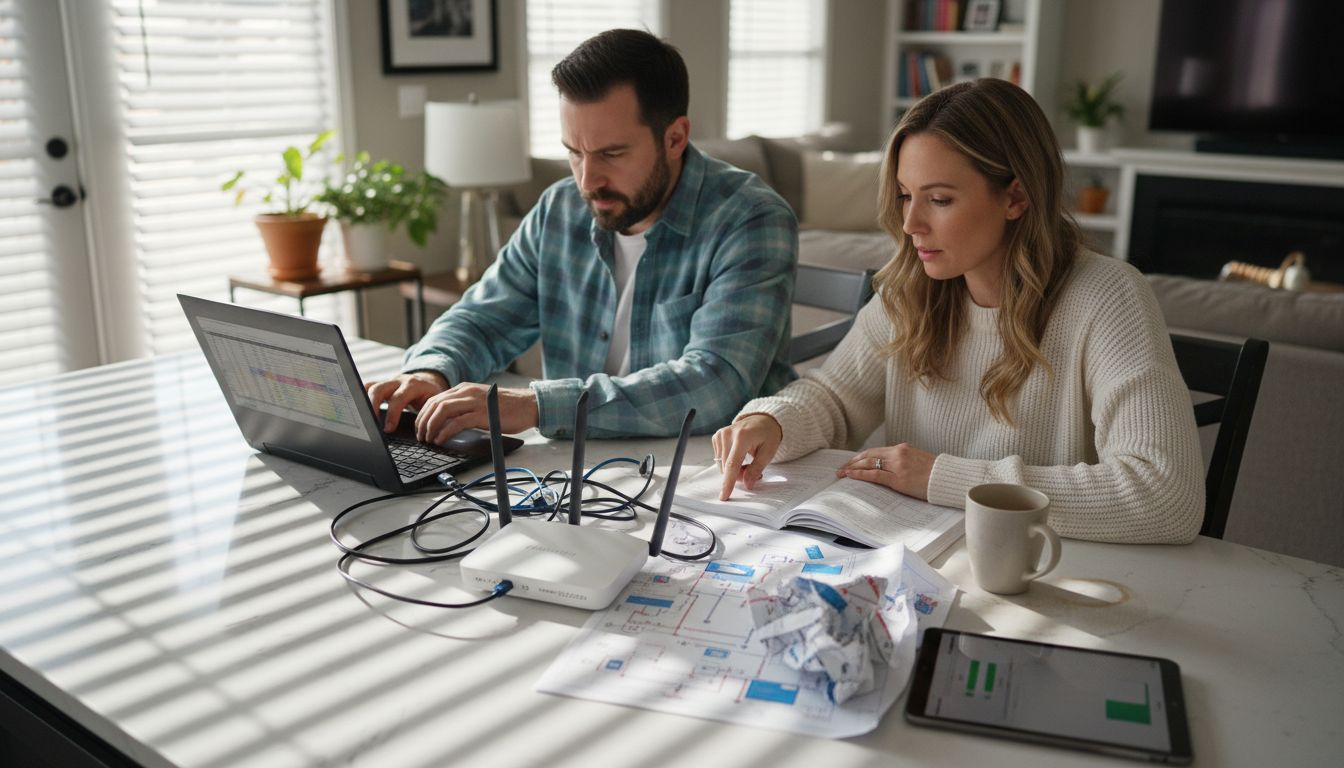
This article explains how to connect smart devices in a way that creates a seamless, reliable, and secure smart home rather than a collection of isolated gadgets. It walks homeowners through assessing their home network and Wi‑Fi coverage, choosing compatible devices and standards (like Matter, Zigbee, and Z‑Wave), and planning for bandwidth-heavy and latency‑sensitive products. It then covers how to install each device correctly, pair it with your preferred hub or voice assistant, and organize clear names and documentation so your setup stays manageable over time. Finally, it shows you how to test automations, verify status reporting and notifications, and troubleshoot connectivity issues so you know exactly how to connect smart devices and keep them working together smoothly.
Table of Contents
- Step 1: Assess Your Smart Home Network Requirements
- Step 2: Select Compatible Smart Devices
- Step 3: Install Devices According To Manufacturer Instructions
- Step 4: Pair Devices With Your Home Automation System
- Step 5: Test And Verify Device Functionality
Quick Summary – How to Connect Smart Devices
| Key Point | Explanation |
|---|---|
| 1. Assess your network needs thoroughly | Count all devices you plan to connect and check Wi-Fi coverage to avoid future issues and ensure seamless integration. |
| 2. Choose compatible smart devices | Understanding communication protocols helps ensure that devices work together smoothly, reducing setup frustration. |
| 3. Install devices according to instructions | Proper installation prevents connectivity issues and ensures devices work as intended without warranty problems. |
| 4. Pair devices with your automation system | Follow specific pairing processes to connect devices to your hub, ensuring they function together as a unified system. |
| 5. Test devices thoroughly before full use | Conduct basic response tests and check for connectivity issues to avoid future frustration when relying on automation. |
Step 1: Assess your smart home network requirements
Before you start buying devices, take time to understand what your network needs to handle. This assessment prevents frustration later and ensures your setup can grow with you.
Start by counting how many devices you plan to connect over the next year or two. Think beyond just smart speakers—include smart lights, thermostats, door locks, security cameras, and anything else on your wish list. Each device consumes bandwidth and network resources, so knowing your endpoint count matters.
Next, evaluate your current Wi-Fi coverage throughout your home. Walk around and note dead zones where the signal weakens. Basements, garages, and rooms far from your router are common problem areas. Smart devices placed in weak signal areas will drop offline or respond slowly, which defeats the purpose of automation.
Consider the types of devices you’re connecting:
- Bandwidth-heavy devices like security cameras and video doorbells demand more data flow
- Low-bandwidth devices like smart bulbs and door sensors need minimal throughput
- Latency-sensitive devices like smart locks require fast, reliable connections
- Always-on devices that stay connected 24/7 create persistent network load
Network security matters just as much as capacity. The NSA emphasizes that securing your home network with best practices is critical for protecting connected devices from cyber threats. A solid foundation now saves headaches later.
You should also check your internet speed. Most smart home setups work fine with standard residential broadband, but running 40+ devices alongside streaming and gaming requires adequate bandwidth. Contact your Internet Service Provider if you’re unsure about your current speeds.
Assess your network before buying devices, not after. This simple step prevents expensive mistakes and ensures seamless integration from day one.
Check whether your router supports the wireless protocols and standards your devices use. Modern routers handle Wi-Fi 5 and Wi-Fi 6, but older equipment may lack support for the latest smart home protocols like Matter.
Write down your findings in a simple spreadsheet: estimated device count, problem areas, current speed, and existing router model. This becomes your planning document for the next steps.
Pro tip: Test your Wi-Fi signal strength in each room using a smartphone app before purchasing devices—this reveals problem areas you can address with a mesh system or range extender.
To help you assess device impact on your smart home network, here’s a comparison of common smart device types- How to Connect Smart Devices
| Device Type | Typical Bandwidth Use | Importance of Placement | Impact if Offline |
|---|---|---|---|
| Security Camera | High | Critical, near router | Loss of monitoring |
| Smart Bulb | Low | Flexible, avoid dead zones | Minor inconvenience |
| Door Lock | Low | Must have strong connection | Security risk |
| Thermostat | Moderate | Central, avoid signal blockages | Comfort affected |
| Video Doorbell | High | Near front entry, strong signal | Missed visitors |
Step 2: Select compatible smart devices
Now that you understand your network requirements, it’s time to choose devices that will work together seamlessly. Compatibility is the difference between a frustrating setup and one that just works.

Start by identifying the communication protocols your chosen devices use. The most common are Wi-Fi, Zigbee, Z-Wave, and Bluetooth. Wi-Fi devices connect directly to your router, while Zigbee and Z-Wave devices form their own mesh networks that talk to a hub or bridge. Understanding communication protocols like Wi-Fi, Zigbee, or Z-Wave ensures devices integrate seamlessly with your home automation platform.
Check for interoperability standards before purchasing. Look for devices that support Matter, which is an emerging standard that lets products from different manufacturers communicate smoothly. Even if you don’t have a Matter-compatible hub yet, buying Matter-ready devices future-proofs your setup.
Here’s what to verify for each device you consider:
- Does it use a protocol your network supports?
- Is it compatible with your chosen hub or control platform?
- Does it work with your existing devices or require a new ecosystem?
- Can you control it with voice assistants you already use?
- Does the manufacturer actively provide software updates?
Choose ENERGY STAR certified devices whenever possible. These products meet strict energy efficiency standards while maintaining full functionality, which saves money on electricity over time. Plus, certified devices tend to have better interoperability because manufacturers must meet industry standards.
Avoid the trap of buying everything from one brand. While an all-in-one ecosystem sounds convenient, you’ll miss out on better products from other manufacturers. Standardized protocols mean you can confidently mix and match devices from different companies.
Compatibility matters more than features. A basic device that works perfectly is better than an advanced device that drops offline constantly.
Before checking out, verify that each device works with the hub or control system you’ve chosen. Read recent customer reviews specifically mentioning connectivity and integration issues. Look for common complaints about devices disconnecting or responding slowly.
Pro tip: Start with one or two devices from your preferred ecosystem, verify everything works smoothly, then expand—this approach catches compatibility problems early before investing heavily.
Here is a summary of key protocols and their benefits when selecting smart devices: How to Connect Smart Devices
| Protocol | Range | Device Interoperability | Typical Use Cases |
|---|---|---|---|
| Wi-Fi | Whole home | Moderate, depends on standards | Cameras, speakers, sensors |
| Zigbee | Medium, mesh | High, across brands | Lighting, sensors, locks |
| Z-Wave | Medium, mesh | High, across brands | Locks, thermostats, switches |
| Bluetooth | Short range | Limited, mostly within brands | Door sensors, health trackers |
Step 3: Install devices according to manufacturer instructions
Proper installation sets the foundation for a reliable smart home. Following manufacturer instructions prevents connectivity issues, safety hazards, and warranty problems down the road.

Start by gathering all materials before you begin. Most smart devices come with installation guides, mounting hardware, and sometimes required hubs or bridges. Read through the entire instruction manual first, even if it seems straightforward. Manufacturers often include important warnings or prerequisites you might miss by jumping straight to assembly.
Check your electrical safety before installing any device. Following electrical regulations and safety standards prevents hazards like electrical shock or fire. If a device requires hardwiring or connects to your electrical panel, contact a licensed electrician rather than attempting it yourself.
Installation typically follows these general steps:
- Power off devices and disconnect power sources where needed
- Mount or position the device in its final location
- Connect to your network using the manufacturer’s app or web interface
- Pair it with your hub or control system if required
- Test all functionality before securing it permanently
Location matters significantly for performance. Place devices where they have clear line of sight to your router or hub, away from metal objects and dense walls that block signals. A smart lock on an exterior door far from your router might need a range extender, so plan accordingly.
During installation, take photos of your setup and save all documentation. Screenshot your device MAC addresses, IP addresses, and network settings. This information becomes invaluable if you need to troubleshoot later or reset a device.
Complying with building and energy codes guarantees operational safety and efficiency. Most residential smart home installations fall within standard codes, but verify this for your specific location.
Install one device completely before moving to the next. This prevents confusion about which device is causing problems if something goes wrong.
Test connectivity immediately after installation. Open your control app and verify the device responds to commands. Check that it appears in your network settings and communicates with your hub without lag.
Pro tip: Create a simple spreadsheet documenting each device’s location, installation date, network address, and password—this saves enormous amounts of time troubleshooting later.
Step 4: Pair devices with your home automation system- How to Connect Smart Devices
Pairing is where your individual devices become a unified ecosystem. This step connects each device to your hub or control platform so they can communicate and respond to automation rules.
Before pairing anything, make sure your home automation hub is powered on and connected to your network. Your hub is the brain of your system—devices pair with it rather than directly with your router. Different platforms like SmartThings, Home Assistant, Apple Home, or Google Home each have their own pairing processes, so follow your hub’s specific instructions.
Open the companion app for your hub on your smartphone. Most pairing happens through the app’s settings menu, usually labeled “Add device,” “Pair device,” or “Connect.” The app will search for nearby unpaired devices and display them as options.
Here’s the typical pairing workflow:
- Open your hub’s app and select “Add device” or similar option
- Choose the device type from the list if prompted
- Put the device into pairing mode as per manufacturer instructions
- Wait for the app to discover and confirm the connection
- Name the device and assign it to a room in your home
- Test the device responds to commands from the app
Understanding IoT architecture and communication protocols helps you troubleshoot pairing problems. Devices use specific network layers to connect, and compatibility between these layers determines successful integration.
Use strong, unique names for each device to avoid confusion. Instead of “Light,” use “Kitchen Island Light” or “Bedroom Ceiling Fan.” Clear naming makes voice control easier and prevents you from controlling the wrong device accidentally.
Pair devices one at a time. If something goes wrong, you’ll know exactly which device caused the problem instead of troubleshooting multiple devices simultaneously.
Ensure you’re using standardized protocols and secure authentication methods during pairing. Your hub should prompt you to create strong passwords or confirm security settings. Never skip security steps, even though they add a few extra minutes.
After successful pairing, assign each device to the appropriate room or zone in your app. This organization makes controlling and automating your home much more intuitive when you start creating scenes and routines.
Pro tip: Write down your hub’s login credentials and store them securely—if you ever need to reset your system, you’ll avoid being locked out of your own automation setup.
Step 5: Test and verify device functionality- How to Connect Smart Devices
Testing each device thoroughly before relying on it prevents frustration and reveals problems while solutions are still simple. This step ensures everything works as expected before you build automations around these devices.
Start with basic response testing. Open your hub’s app and send a simple command to each device. If it’s a light, turn it on and off. Or, if it’s a lock, check that it responds to lock and unlock commands. If it’s a sensor, verify it detects activity or changes.
Test both app control and voice commands if your system supports them. Say things like “Turn on the bedroom light” or “Lock the front door” and confirm the device responds within a reasonable timeframe. Slow responses indicate connectivity problems that need addressing before you create automations.
Perform these verification checks for each device:
- Does it respond immediately to commands from the app?
- Does voice control work reliably across your home?
- Does the device show the correct current status in the app?
- Do notifications or status updates appear when you manually control it?
- Is the connection stable, or does it occasionally go offline?
Perform continuous monitoring and verification processes to detect anomalies and ensure devices function securely. Watch for unexpected disconnections, slow responses, or devices that require repeated commands before responding.
Check your network performance during testing. Open a speed test app and verify your internet connection remains strong while controlling devices. A device that works fine when you’re standing next to it might struggle when you’re across the house if network coverage is weak.
Test automation trigger conditions if you’ve already created any. If a motion sensor is supposed to turn on a light automatically, walk through the room and confirm it works. Test at different times of day and in various lighting conditions to ensure reliability.
Devices that work inconsistently now will be frustrating later. Fix issues immediately rather than hoping they’ll resolve themselves.
Document any problems you encounter. Does a particular device disconnect regularly? Does voice control fail in certain rooms? Note these patterns so you can troubleshoot systematically.
Check smart grid integration for effective communication between devices and your home’s energy systems. Verify that energy monitoring features provide accurate readings if your devices support them.
Pro tip: Create a test checklist with every device and the specific commands you’ll use—this systematic approach ensures you don’t miss any devices and makes troubleshooting much faster if problems arise.
Unlock Seamless Smart Device Integration for Your Home
Connecting smart devices can feel overwhelming with compatibility challenges and network complexities. This article highlights the importance of understanding communication protocols, device placement, and secure pairing to avoid frustrating disconnections and achieve a truly connected home. If you want to stop guessing which products will work together and start building a reliable automation system, comprehensive guidance is key.

Explore expert-reviewed, unbiased insights on the best smart appliances and how to integrate them effortlessly at Smart Appliances Archives – Smart Home HQ. For a deep dive into setup tips and proven strategies, check out The Complete Smart Home Automation Master Guide Archives – Smart Home HQ. Start transforming your smart home experience today by visiting Smart Home HQ to access detailed reviews, step-by-step tutorials, and trusted product recommendations designed to simplify your smart device connection journey.
Frequently Asked Questions- How to Connect Smart Devices
How do I assess my smart home network requirements before connecting devices?
Before connecting devices, count how many smart devices you plan to use, including lights, thermostats, and security cameras. Evaluate your current Wi-Fi coverage by walking around your home to identify dead zones and ensure adequate bandwidth.
What should I consider when selecting compatible smart devices for seamless integration?
When selecting smart devices, check their communication protocols, such as Wi-Fi, Zigbee, or Z-Wave, to ensure compatibility with your network. Look for interoperability standards like Matter to future-proof your setup and verify that devices can be controlled by your existing home automation platform.
What are the installation steps I need to follow for smart devices?
To install smart devices correctly, gather all materials and read the installation guide thoroughly. Start by powering down any electrical sources if necessary, then mount the device, connect to your network using the manufacturer’s app, and test its functionality before securing it permanently.
How do I pair smart devices with my home automation system?
To pair devices with your home automation system, ensure your hub is powered on and connected to your network. Open your hub’s companion app, select the option to add a device, and follow the prompts to connect each device one at a time, ensuring proper naming and organization for ease of use.
What testing should I conduct to verify that smart devices function correctly?
After installation, conduct basic response tests by sending commands to each device through the app or voice control to ensure they respond correctly. Verify network performance during testing; if any device is slow or does not respond, troubleshoot connectivity issues immediately.
How can I document my smart home setup for future reference?
Create a simple spreadsheet to log each device’s location, installation date, network address, and passwords. This documentation will save time during troubleshooting and help maintain an organized and efficient smart home system.
Recommended
- Role of Integrations in Smart Homes: Unlocking Seamless Living
- Why Integrate Smart Devices: Transforming Home Life
- Smart Living Compatibility – Why Device Integration Matters
- 7 Essential Smart Home Integration Tips for Homeowners